![5dc118e15ea7a18df753b7d159bf1fc2-Jul-24-2025-05-00-08-7628-PM.png]](https://help.heynota.com/hs-fs/hubfs/postcards-files/5dc118e15ea7a18df753b7d159bf1fc2-Jul-24-2025-05-00-08-7628-PM.png?height=46&name=5dc118e15ea7a18df753b7d159bf1fc2-Jul-24-2025-05-00-08-7628-PM.png)
Step 1: Log into the Nota dashboard at https://tools.heynota.com/
Step 2: Navigate to the the DRAFT tool via the tool tile on the home screen or via the tool name on the left navigation bar
Step 3: You have the ability to upload file(s), paste content, or insert links.
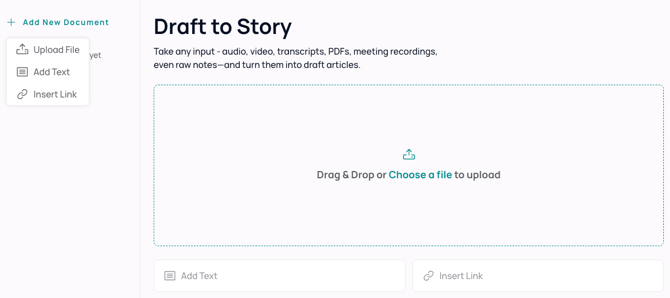
- To add a document you have several options
- Simply click ‘+ Add New Document’ to upload a file, add text, or insert a hyperlink
- Click the Upload File button to select a file from your computer
- Paste text into the Add Text text box
- Insert a hyperlink(s)
- Drag and drop a file over the main content area
- Once a file is uploaded, you will see the text pulled in or transcribed from the file in the context window (example below)
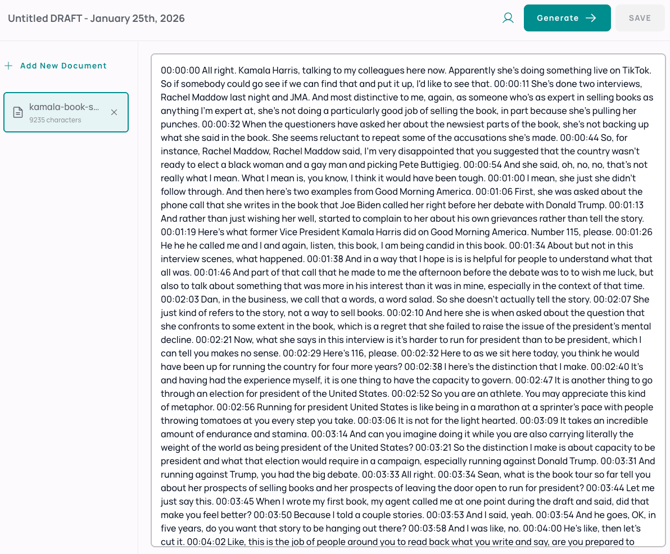
Step 4: Once you have the data you’d like to use to generate your draft article loaded, simply hit the green Generate button in the top right corner. Note: Generating the article may take a minute or so to load.
Step 5: You will then be taken to a preview of the article that was generated.
Note: An alert will display if inaccuracies were detected in the output. This typically occurs when insufficient source material is provided to generate a complete article. You can either click the alert or toggle into Edit mode (example below).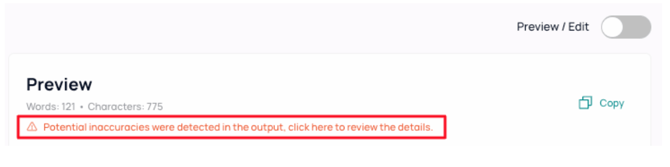
From this screen you can click the Preview/Edit toggle if you’d like to review potential inaccuracies or make updates to the copy (example below).
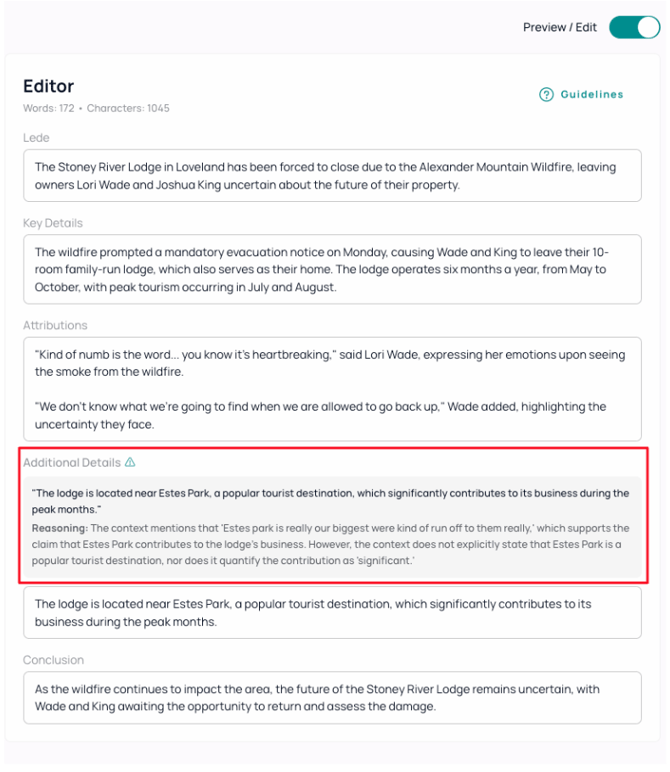
Please note, the article generated follows a standard inverted pyramid style of article construction. More insights can be found via our Guidelines link and are listed below:
-
Lede: The opening sentence or paragraph crafted to grab attention and immediately convey the most crucial aspect of the story. It sets the tone and hooks the audience.
-
Nut: Context to explain the core of the story, answering the “why it matters” question and providing essential context.
- Attributions: Credible mentions of sources, such as quotes or references to individuals, organizations, or documents that support the story.
- Additional Details: Supporting facts, context, or anecdotes that enhance understanding while maintaining clarity and avoiding unnecessary complexity.
- External Sources: References to additional information for further exploration, followup, or verification beyond the immediate story.
If any of the above sections have the green alert icon next to the section name, simply click the section name to expand the explanation as to why the alert was called out for your review.
Step 6: Once you’re done editing the elements of the article, you can switch back into Preview mode, and click the Copy icon to take the draft article to your CMS.

Additional Notes:
- You can update the sources used to generate your draft article by clicking on the
‘← Back to Sources’ link in the upper left hand corner of the screen.
- You can also click the ‘Regenerate’ button in the top right corner of the screen if you’d like the DRAFT tool to create another version of the draft article for you.
- Once your article is complete, feel free to drop it into our SUM tool within the dashboard to get headline suggestions and SEO elements for pre-publish optimization.