
Guide Highlights:
- Integrating the Nota browser extension with the Sidearm content management system (CMS) allows users to utilize Nota's summarization, SEO, social media management, and proofreading features alongside the Sidearm CMS environment.
- Benefits of the integration include frictionless access to the Nota tool suite, article optimization for pre-published content, efficient social media caption ideation, best in class SEO recommendations, which result in enhanced productivity, improved content quality, and better engagement across all platforms.
Download the Nota’s Chrome browser extension here. For more information on downloading/accessing the Nota browser extension, visit this knowledge base article.
Tool Tip: It’s helpful to pin the Nota browser extension to your browser’s toolbar for ease of use/access.
- Click on the puzzle icon from the Chrome toolbar.
- Click the 📌 (pin) icon next to the Nota extension.
- Note that the Nota extension is now pinned and can be accessed directly from the toolbar.
Navigate to your Sidearm CMS. The Nota browser extension will appear on the right side of the screen. See below:
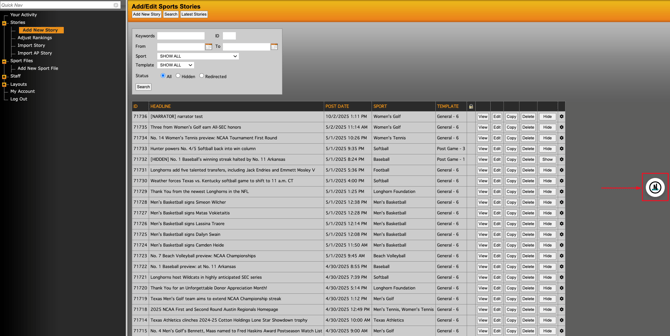
Note: You will have the ability to manage the bubble display in your browser extension settings.
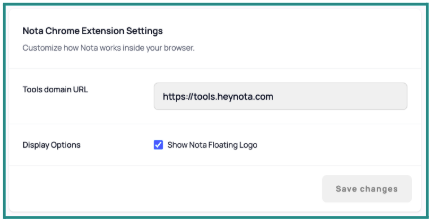
The “bubble” setting may be turned off by right clicking the extension icon and selecting Options. The Show Nota Floating Logo checkbox toggles visibility of the floating icon within the CMS window. When disabled, the extension may be accessed by clicking directly on the extension logo to activate the side panel.
- Click the Nota icon so that the Nota tools will fly out and you will be able to access the suite of tools on the right rail. Below is what the screen will look like after clicking the Nota icon.
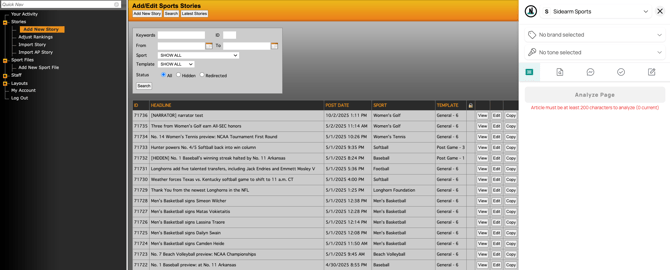
Note: If you open the Nota sidebar when you aren't within a draft article, the Nota tools will not have any data to analyze, therefore you will get a notification that states “Article must be at least 200 characters to analyze (0 current)” when the article is empty. However, when you begin drafting content, a green Analyze Page button will appear (as seen below).
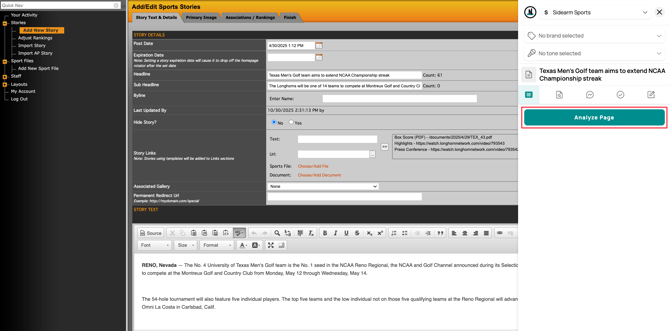
Ensure you have selected the appropriate workspace (Sidearm Sports), Brand (ex. Texas Longhorns) and tone prior to analyzing your content. In the top right corner, you will see three drop down selectors. The first indicates which workspace you are working within (ex. Your company’s name or corresponding team). The second indicates which brand you're working within. The third indicates the tone (if applicable) you’d like to be applied to your outputs. For more information on how to set up tones within the Nota dashboard, click here.
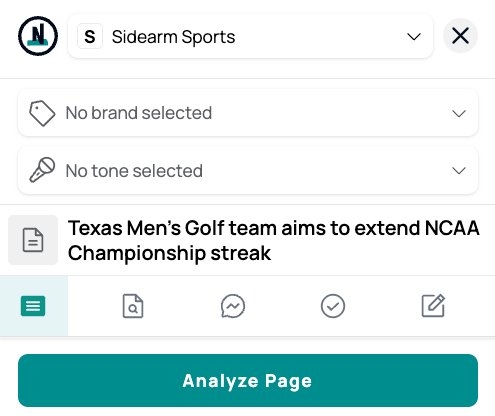
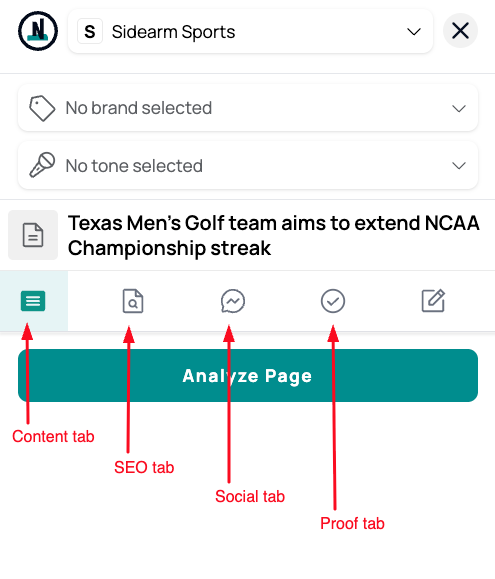
You have a few options when reviewing the outputs created by the Nota tools.
- Click the copy icon if you want to add the output to your clipboard
- Click the pencil icon if you want to edit the content within that respective field
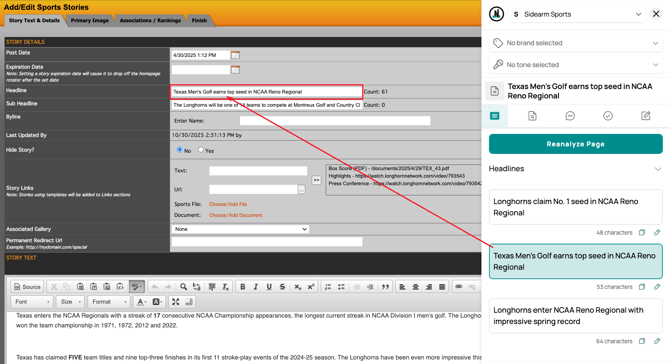
- Click the output if you want to select it for inclusion in the article. By selecting the output it will automatically inject this content into the appropriate field within your Sidearm CMS environment (for specific fields).
Note: Not all outputs Nota generates will automatically inject into a field within the Sidearm environment. We will outline which fields will/won’t be automatically added to a field within your CMS environment below.
The CONTENT tab will produce suggestions for the following elements:
- Headlines - will automatically inject into the Headline Sidearm field
- Summary - a suggestion you can review and copy/paste to your desired location
- Key Points - a suggestion you can review and copy/paste to your desired location
- Pull Quotes - a suggestion you can review and copy/paste to your desired location
- Categories - a suggestion you can review and copy/paste to your desired location
- Tags - will automatically inject into the appropriate META Keywords Sidearm field
As you make content selections within the Nota browser extension, you will see that the output is then highlighted in green and injected into the appropriate field within Sidearm. See below.
- META Titles - a suggestion you can review and copy/paste to your desired location
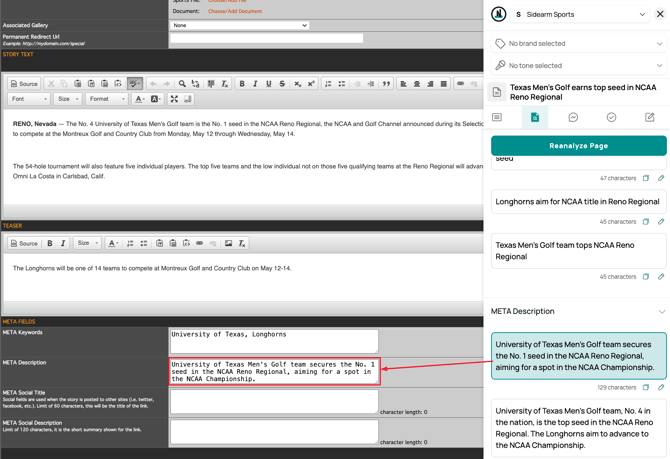
- Meta Descriptions - will automatically inject into the appropriate Sidearm field
- Slugs - a suggestion you can review and copy/paste to your desired location
- META Social Title - will automatically inject into the appropriate Sidearm field
- META Social Description - will automatically inject into the appropriate Sidearm field
- META Keywords - will automatically inject into the appropriate Sidearm field
As you make content selections within the Nota browser extension, you will see that the output is then highlighted in green and injected into the appropriate field within Sidearm. See below.
The SOCIAL tab will produce suggestions for the following elements:
- Facebook Posts - a suggestion you can review and copy/paste to your desired location
- Instagram Posts - a suggestion you can review and copy/paste to your desired location
- X Posts - a suggestion you can review and copy/paste to your desired location
- Threads Posts - a suggestion you can review and copy/paste to your desired location
- TikTok Posts - a suggestion you can review and copy/paste to your desired location
- SMS Messages - a suggestion you can review and copy/paste to your desired location
- Hashtags - a suggestion you can review and copy/paste to your desired location
Note: Outputs generated by Nota are optimized for best practices specific to that platform. You can customize these outputs even further by leveraging Nota’s Tone Builder tool.
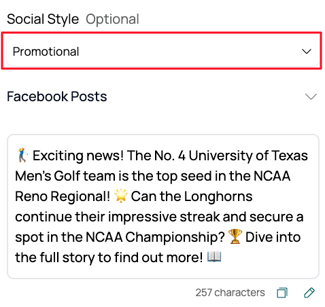
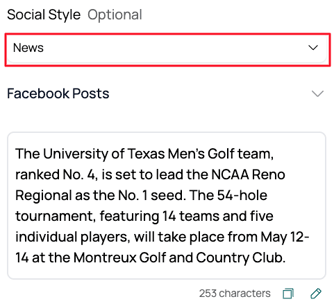
At the top of the Social tab you will also notice a drop down that allows you to select an Optional Social Style (Promotional v News). Promotional outputs will employ the use of relevant emojis, calls to actions, and questions to drive engagement. News outputs will provide straight forward posts that share the essence of the article with an informational style output. See an example of each style below:
When you navigate to the PROOF tab, you will see a green button that says “Get started” (see below).

Once you click the Get started button, PROOF will analyze your content across 9 different criteria spanning the following:
- Use of Keywords
- Word Count
- Content Analysis: Content Readability (length, spelling, etc.) and Headline
- SEO Analysis: META Title and META Description
- Link Integrity: Link Health Report and URL check
Your initial score will reflect your adherence to best practices for optimizing your content listed above. Nota PROOF will provide you with suggestions, insights, and recommendations to improve any areas of your content that don’t meet best practices. These are only recommendations, so please use your discretion in deciding which of the suggestions/recommendations you apply to your content.
As you make your way down the right rail through the Nota PROOF recommendations, there are sections of PROOF that will allow you to click a Highlight suggestion button, which will point you to the area where you can select a Nota output to improve your content (See below).
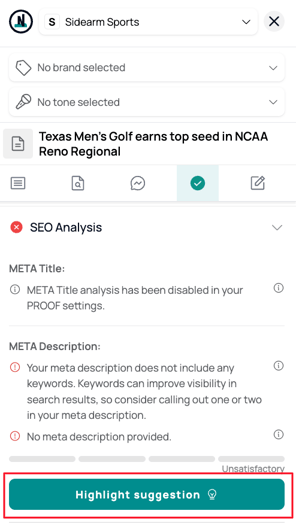
Once you select a Nota tools recommendation for your content, you will see that the Nota PROOF tool will request that you refresh your analysis so that it can adjust your Global Score based on the update(s) you made. See prompt below:

After clicking the Refresh analysis button, you will notice that your Global Score should now improve based on the update(s) you made to the content.
Continue to work through the list of recommendations and content updates to improve your pre-published content prior to publishing to maximize your Global Score.
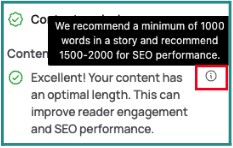
PROOF is meant to assist you with things that are easy to overlook before publishing content, so please review the recommendations and insights for each of those recommendations listed next to the feedback to understand the rationale behind the recommendation, example below:
Note: We will continue to monitor and review industry best practices for maximizing performance for SEO and will consistently update and refine PROOF’s recommendations in alignment with any new information that will provide our customers with better outcomes.